

What Is A Post?
In our previous lesson we learned how to create pages in WordPress. In this lesson we’re going to learn about an equally essential part of WordPress which is called a post.
What in the world is a post? A post is very similar to a page; we give it a title and content. So what’s the difference between a page and a post? Imagine you visit a popular news website:
- Each news article is a post
- Now imagine on that same news website you scroll down to the footer and click on the “About Us” link. That is their “About Us” page.
So what’s the difference? A post is timely; the date that it’s published matters (where as a page doesn’t usually show the date it was published). A site’s news or blog area is powered by posts. Their timeless or informational content lives in pages.
I think of posts as a river of content flowing through your site. Most websites usually show the most recent 5 or 10 posts prominently, but their posts from years ago would require some digging to find. Whereas pages are usually always displayed prominently in the header or footer navigation and they’re evergreen; the date they were created doesn’t matter and doesn’t change how prominently they’re displayed on the site.
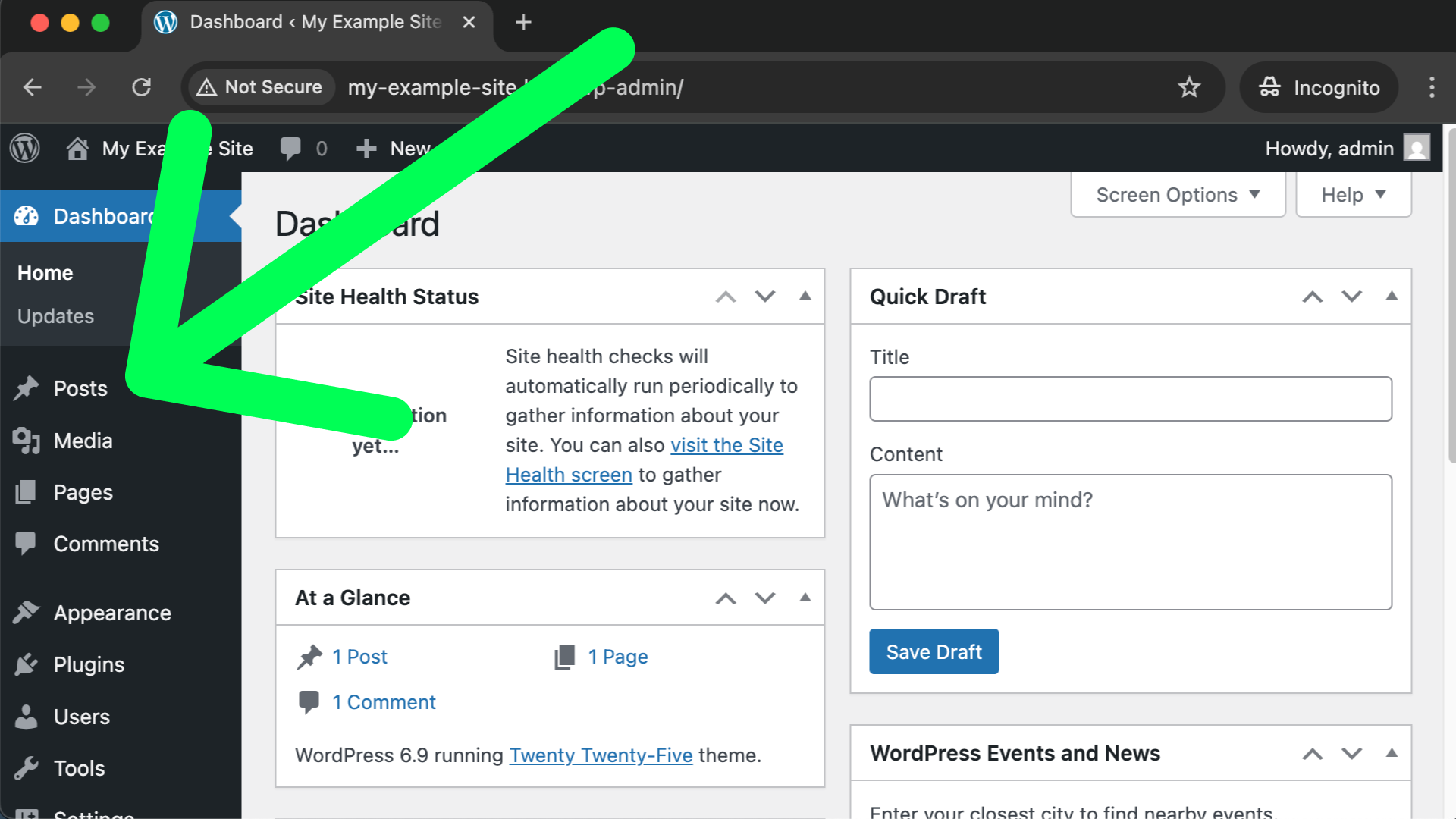
Enough theory; let’s create our first post right now! From your WordPress owner dashboard click on Posts in the lefthand menu (shown in the following screenshot).
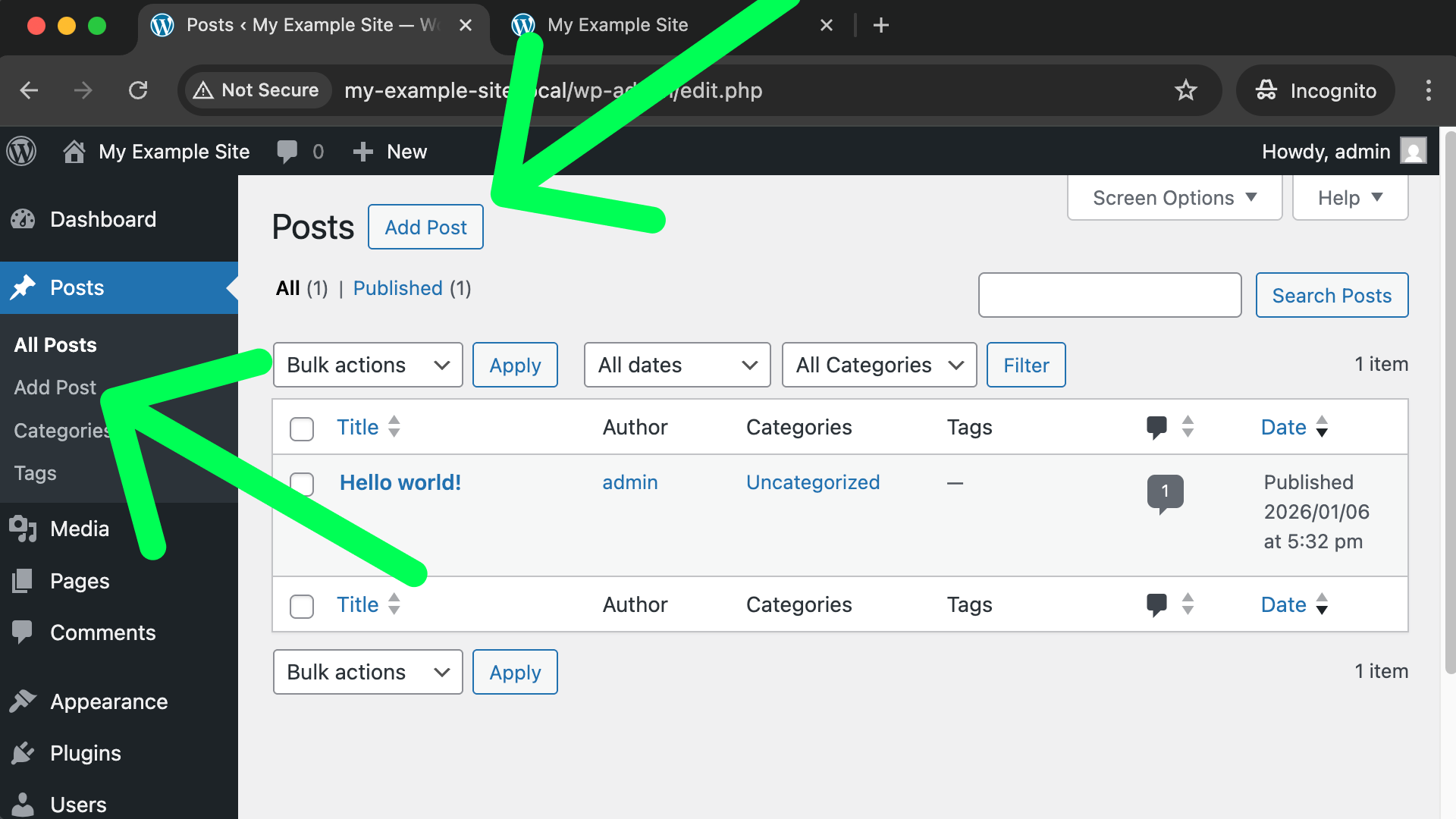
Just like with pages, you’ll be taken to a screen that shows you all of your currently existing posts. If you wanted to edit an existing post you can click on its title, but in our case we want to create a new post. The following screenshot shows you where to find the “Add Post” links.
Once you’re on the editor screen you’ll know what to do from our previous lesson about pages. For example you could give the post a title of “Our Upcoming Sale” and then write in a bit of hypothetical content below the title. To save the post use the “Publish” button in the top right corner and remember you’ll need to click it a second time.
Practice Makes Perfect
After publishing your first post you can use the “W” icon in the top left corner to go back to your dashboard. Feel free to create a 2nd and 3rd example post if you feel so inclined. At this point you might be curious where your posts are shown on your website? Remember, from the WordPress dashboard you can click the little home icon towards the top left to be taken to your public website.
This Isn’t What I Want
The default theme and setup of WordPress shows your newest posts on your homepage. So you’ll see your newest post and right below that is your 2nd newest post so on and so forth.
While that might be what you want your website to do if you’re running a very simplistic blog, the reality is that 95% of website owners don’t want a news or blog feed as their site’s homepage. So, in our very next lesson we’ll learn how to have a homepage with evergreen content that you can control while keeping a link to “News” or “Blog” in your site’s top right navigation. In other words; the best of both worlds!
