

Setup Your Online Home
Setting up a website is as simple as deciding what you want your domain (dot com) to be and which company you trust to keep your site online 24/7.
There are countless companies to choose from and it can be a stressful and time consuming rabbit hole to research all of them. To save you time and hassle I can let you know that I’ve trusted DreamHost to host all of my websites for the last 20 years and they’ve never let me down.
Click here to open DreamHost in a new tab, and click the “Sign Up Now” link on the most affordable plan. Once you do, you should see a screen that looks like this:
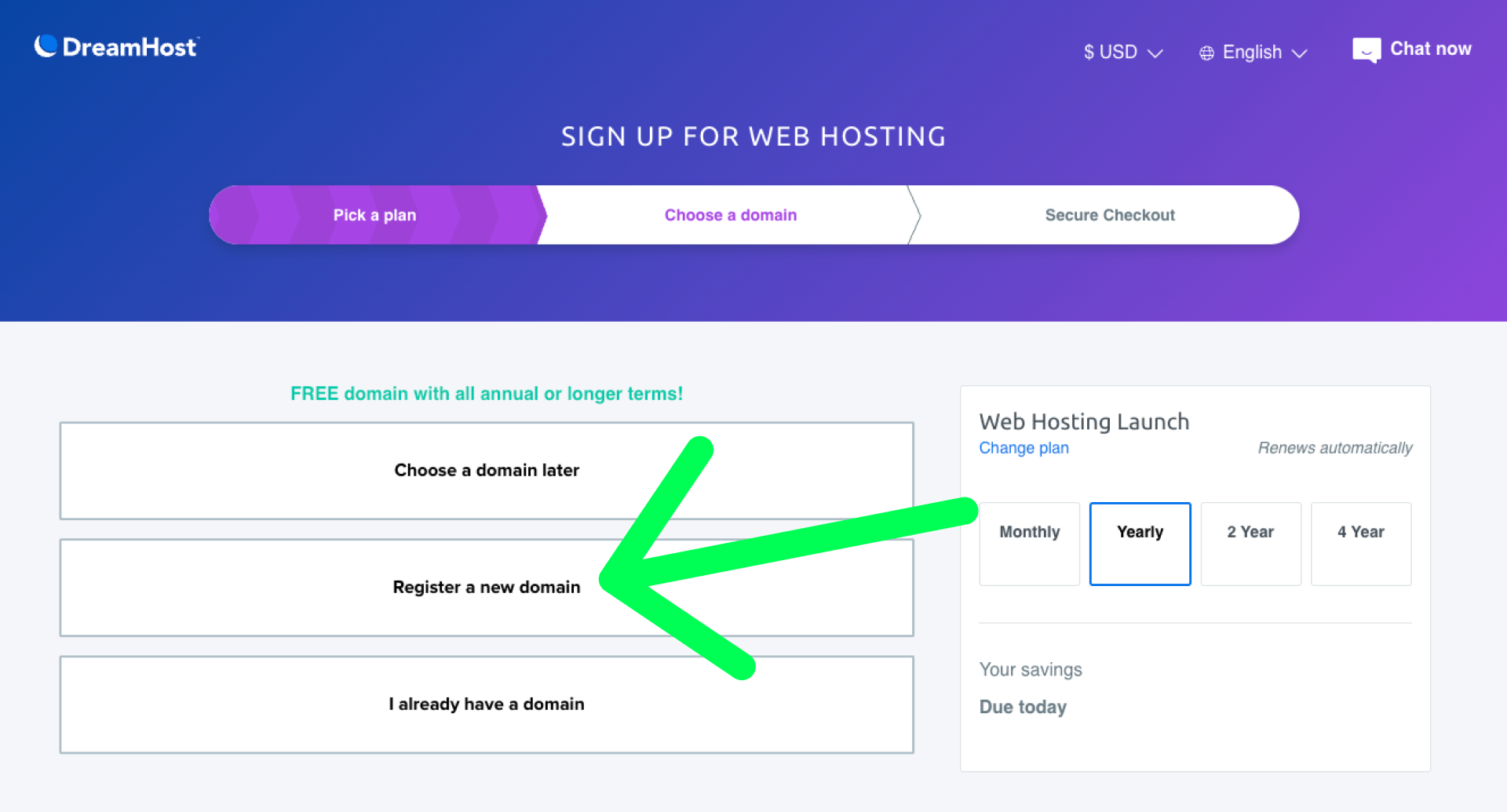
We’re interested in the “Register a new domain” option so click on that. Now you need to decide what you want your domain (dot com) to be. After typing in the domain you want click on the blue search icon and it will let you know if that domain is available or if someone else in the world already owns it. Once you find an available one that you want you simply click the blue “add for $0.00” button next to it. Note that you need to choose the annual plan or longer to get your domain at no extra cost.
Affordable As Possible
After selecting your domain it’s time to choose which add-ons you want or don’t want. For example, I recommend unchecking the “DreamShield Protect” add-on – that will save you $3.00 per month and you don’t need that feature. I also recommend unchecking the “DreamHost Email” add-on which will save you another $19.99 per year. If you know for a fact that you’ll want and need a “yourName@your-domain.com” email address then by all means, leave that option checked. I’m just letting you know, you can always add email later; I’m assuming you want to keep things as affordable as possible today, and if you decide you need the professional email address you can always add that on months down the road.
Finally, DreamHost offers bigger discounts if you sign up for a longer plan. For example, paying monthly will be the most expensive option and committing to 4 years up front will be the cheapest per month option.
Go ahead and finish your purchase. Congratulations, you now have your own slice of the internet with your own domain. The DreamHost plan you just signed up for not only came bundled with your domain, but it also has everything we need to create and build your actual website (content, pages, colors, images etc…)
That’s exactly what we’ll do in our next step of the guide; learn how to actually build and setup your website.