

Custom Homepage
The default behavior of WordPress is to make your homepage a listing of your newest posts. That’s great if your website is just a simple blog or online public journal, but 95% of website owners don’t want that. In this lesson we’ll learn how to let your homepage be an actual page that you control the content of, and we can still link to a News or Blog area in our site’s navigation.
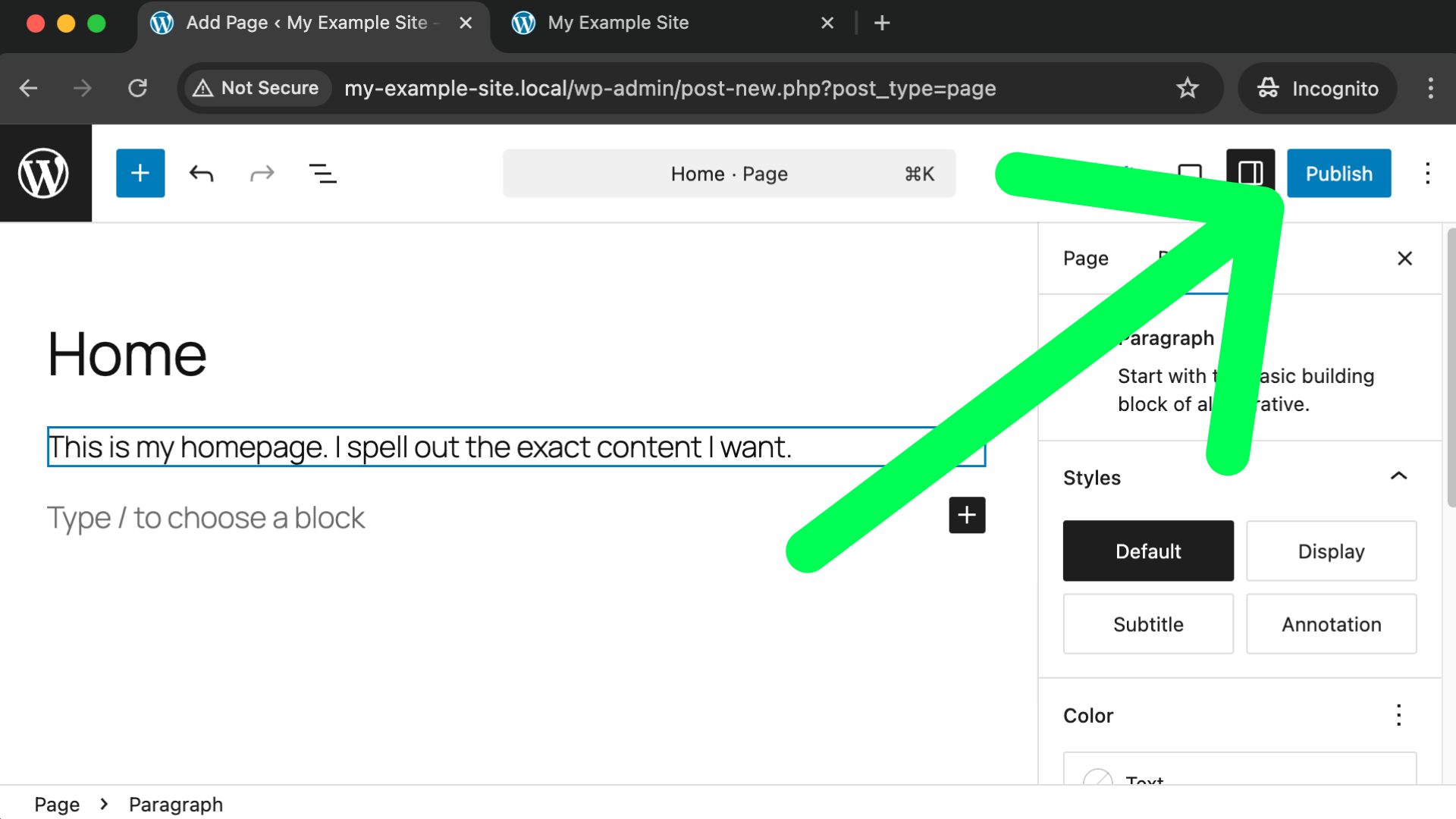
Our first step is to create a brand new page and give it a title of Home. For now you can just give it a hyptoethical sentence for its content, but in the future you can add anything you want for the content. Be sure to publish the page and remember you’ll need to click the top-right publish button twice.
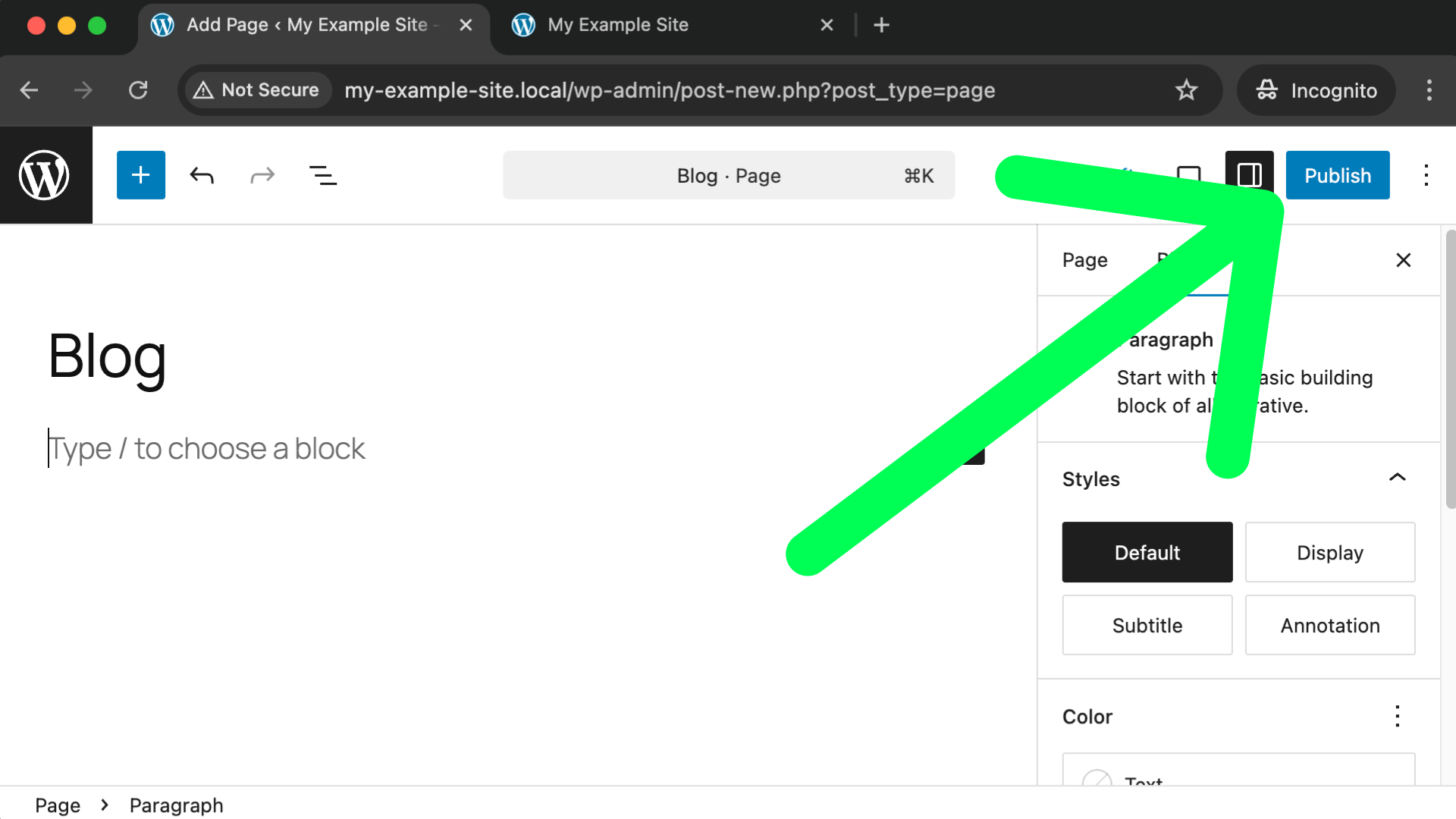
Next, create another new page and give it a title of “Blog” or “News” or whatever you’d like. For this page you can literally leave the content area empty; a title is all that is required. Be sure to publish this page.
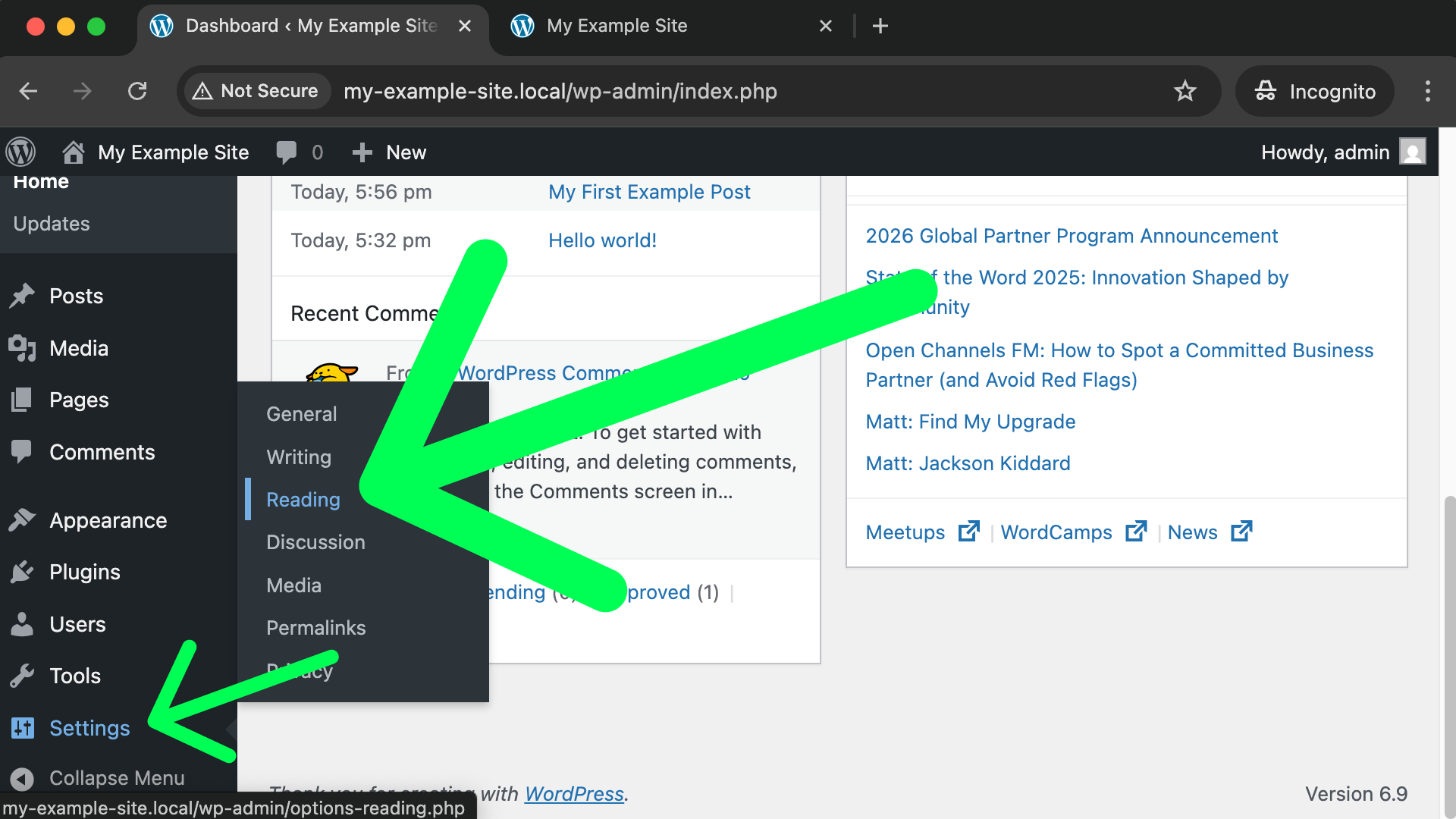
After publishing that page use the “W” icon in the top left corner to go back to your dashboard. Now look for “Settings” in the lefthand menu. When you hover over “Settings” a sub-menu will appear and we’re looking for the “Reading” option (as shown in the following screenshot).
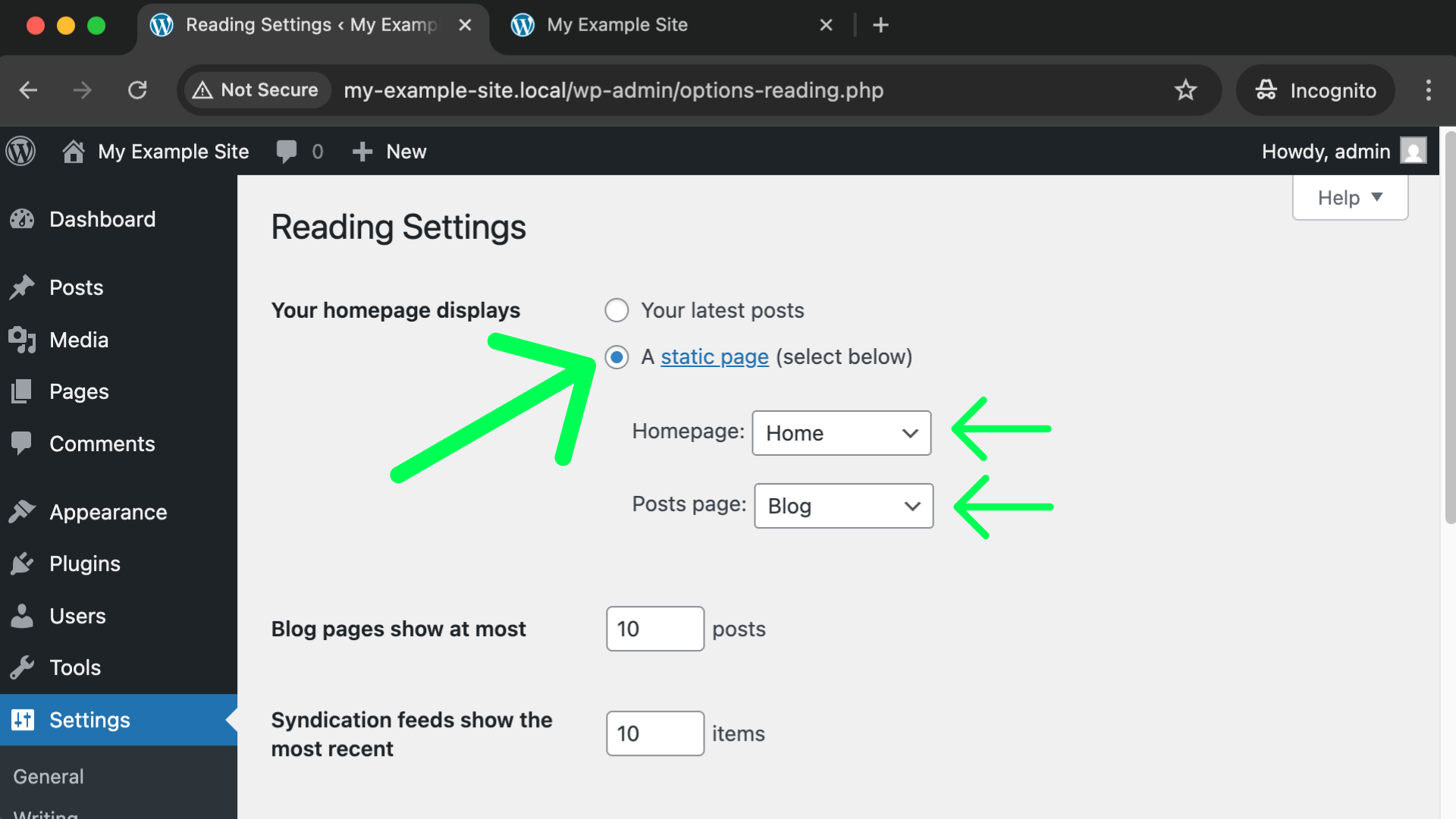
From this screen we want to change the “Your homepage displays” option. Choose the “A static page” option and then for the Homepage field choose the “Home” page we created a minute ago. And for the “Posts page” field choose the page you created a moment ago that you named “News” or “Blog” or something similar.
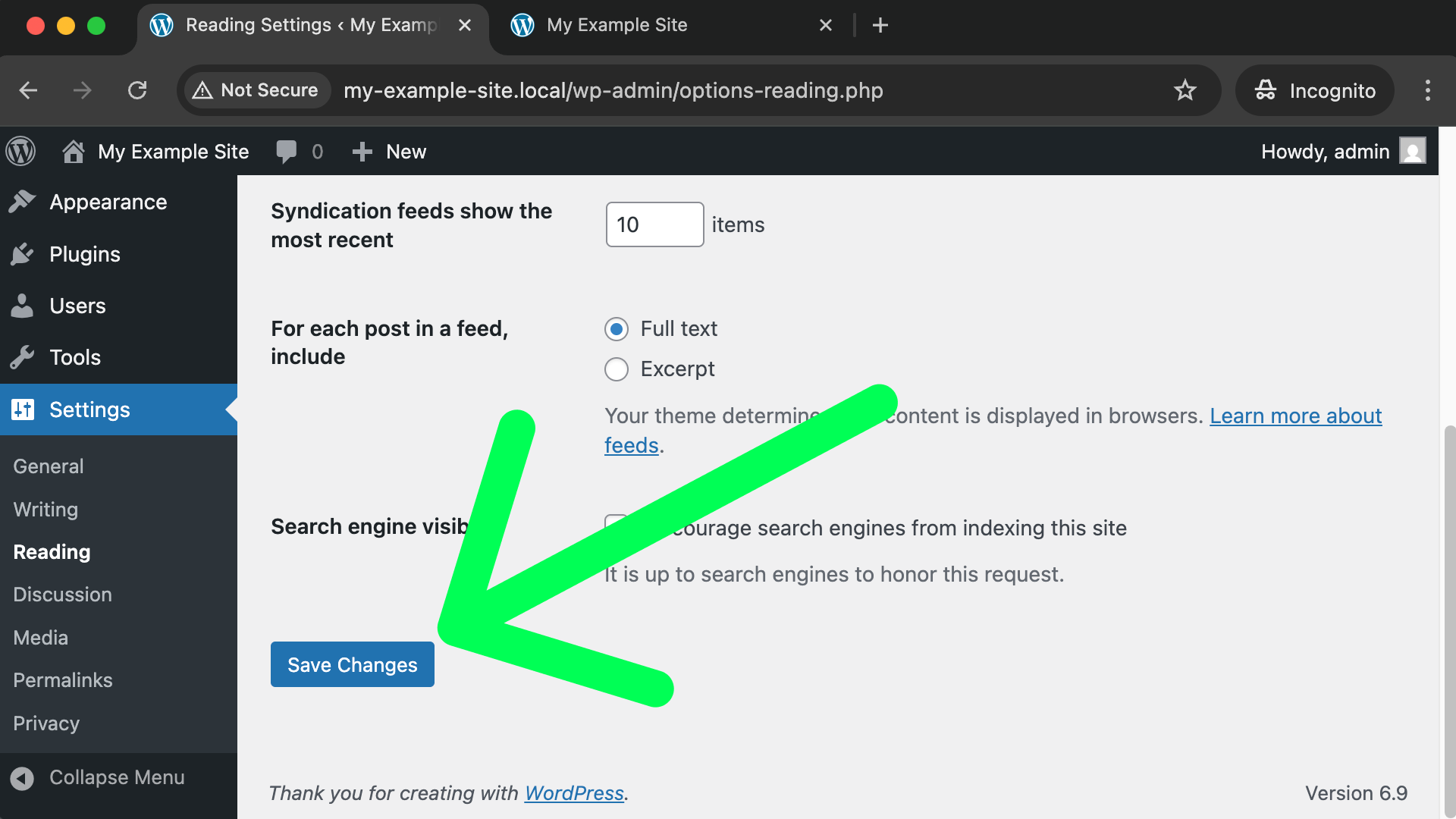
Finally, don’t forget to scroll down and click the blue “Save Changes” button at the bottom of the settings screen.
Now you can use the little home icon in the top left corner to visit your public website. Your homepage is now a page which you can freely edit the content of. However, we still need to a link to your “News” or “Blog” area in your site’s navigation. To do that, click on Appearance in the lefthand menu of your dashboard.
- Next, click on “Customize” on the first currently active theme.
- Next, click on Navigation.
- Next, click the three dots and choose Edit.
- Next, click on the navigation menu itself and choose Edit.
- After clicking on your navigation menu you should see a plus symbol icon. You can use that to add a link to your Blog or News page, and you can also add another link to your “Home” page.
- Be sure to save your changes using the blue “Save” button in the top right corner.
Remember, you can click the “W” icon in the top left corner to get back to your overall dashboard.
Congratulations!
You now have a website with the pages you desire and a dynamic news area. From here you just need to experiment adding content aside from paragraphs of text to your pages. I will expand this guide to include how to do that and many other details over time; but for now, this is where the guide ends.
There is an infinite amount of excellent WordPress guides and tutorials for you to search out and learn from. The important part is that you now have your own real website and domain, and you’re using the same powerful software (WordPress) that NASA, Harvard, Microsoft and the Walt Disney Company use. Trust me, whatever ideas you have for your website, they’re possible with WordPress!
All the best,
Brad
